Apple Health
Ray can receive activity and recovery data from your phone automatically — no manual entry needed. It works through two private webhook URLs that you generate inside the bot, plus two ready-made iOS Shortcuts that upload your Apple Health data to those URLs.
What gets synced
| Channel | Frequency | Fields |
|---|---|---|
| 📈 Activity | Hourly | Active energy, resting energy |
| 🛌 Recovery | Once each morning | Sleep duration, resting heart rate, HRV |
Once data arrives, Ray uses it in every recommendation. Ask “How active was I this week?” or “What was my sleep like yesterday?” and Ray will answer from your real numbers.
Install the two shortcuts
-
Generate your personal webhook URLs.
In the bot, go to ⚙️ Settings → 🔌 Integrations → 🍎 Apple Health and tap 📲 Set up Apple Health. You’ll receive two private URLs — one for Activity, one for Recovery. Keep them handy for the next step.
-
Add both shortcuts from these links (open them on your iPhone):
- Activity — Upload Activity Data
- Recovery — Upload Recovery Data
Tap Add Shortcut on each, and paste the matching webhook URL from step 1 when prompted.
-
Run each shortcut once to confirm it connects.
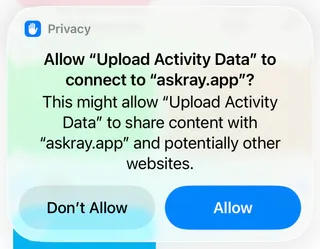
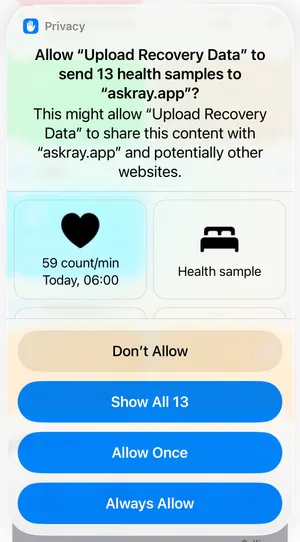
The first time a shortcut runs, iOS asks for permission. Tap Allow for the connection prompt, and Always Allow for the health-data prompt so future background runs aren’t blocked. These prompts appear only on the first run.
Make it run automatically
Set up one automation per shortcut so your data uploads on its own whenever you open Telegram — no need to launch the shortcuts by hand.
-
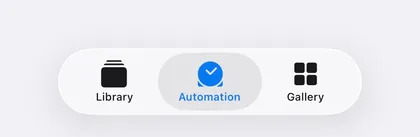
Open the Automation tab in the Shortcuts app.
-
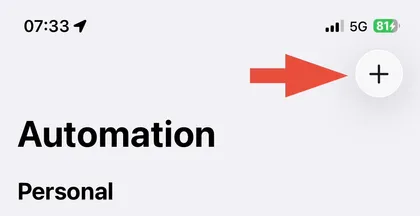
Tap the + button in the top-right to create a new automation.
-
Choose the App trigger and configure it: set the app to Telegram, select Is Opened, choose Run Immediately, and turn Notify When Run off. Tap Next, then pick the Upload Activity Data shortcut as the action.
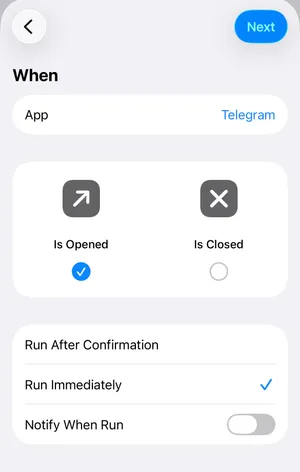
-
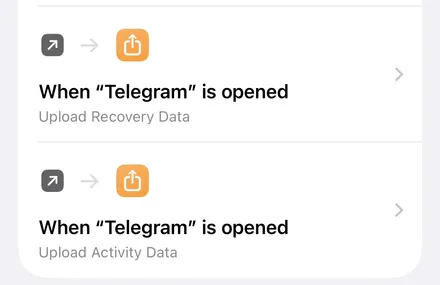
Repeat for Recovery. After saving both, your Automation list shows two entries — Upload Recovery Data and Upload Activity Data, each running when Telegram is opened.
Confirm the data is flowing
Open the 🍎 Apple Health screen in the bot (⚙️ Settings → 🔌 Integrations → 🍎 Apple Health). After a successful upload you’ll see a recent Last sync time for both Activity and Sleep.
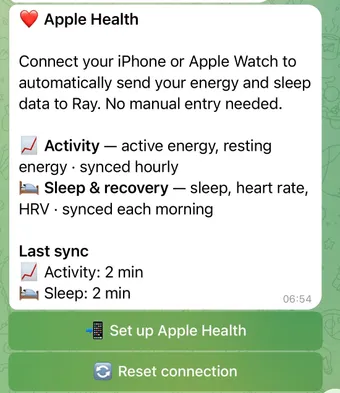
As a final check, ask Ray “How active was I today?” and “What was my sleep last night?” — if the numbers match your watch, everything is wired up correctly.
Use a different source
The webhook accepts plain JSON POSTs, so anything that can make an HTTP request works — Android’s Tasker, a Home Assistant automation, a custom script. The iOS Shortcuts are just a convenience wrapper.
Refer to the payload format in the 🍎 Apple Health screen inside the bot.